
Manual Setup
We provide extensions or configuration files for different editors to better support .slint files.
Editors
Section titled “Editors”If your favorite editor is not in the list of supported editors, it just means we did not test it, not that it doesn’t work. We do provide a language server for Slint that should work with most editor that supports the Language Server Protocol (LSP). If you do test your editor with it, we would be happy to accept a pull request that adds instructions here.
Slint Language Server (slint-lsp)
Section titled “Slint Language Server (slint-lsp)”Most modern editors use the Language Server Protocol (LSP) ↗ to add support for different programming languages.
Slint provides an LSP implementation with the slint-lsp binary.
Installation
Section titled “Installation”If you have Rust installed, you can install the binary by running the following command:
cargo install slint-lspThis makes the latest released version available in $HOME/.cargo/bin. If you would like to try a development version, you can also point cargo install to the git repository:
for the released version. Or, to install the development version:
cargo install slint-lsp --git https://github.com/slint-ui/slint --forceAlternatively, you can download one of our pre-built binaries for Linux or Windows:
- Go to the latest Slint release ↗
- From “Assets” download either
slint-lsp-linux.tar.gzfor a Linux x86-64 binary orslint-lsp-windows-x86_64.zipfor a Windows x86-64 binary. - Uncompress the downloaded archive into a location of your choice.
Make sure the required dependencies are found. On Debian-like systems install them with the following command:
sudo apt install -y build-essential libx11-xcb1 libx11-dev libxcb1-dev libxkbcommon0 libinput10 libinput-dev libgbm1 libgbm-devEditor configuration
Section titled “Editor configuration”Once you have slint-lsp installed, configure your editor to use the binary, no arguments are required.
See our list of editor configurations for details.
If your editor is not on this list, please refer to your editors documentation for details on how to set up language servers.
Formatting Slint files
Section titled “Formatting Slint files”Slint files can be auto-formatted with slint-lsp in the following ways:
slint-lsp format <path>- reads the file and outputs the formatted version to stdoutslint-lsp format -i <path>- reads the file and saves the output to the same fileslint-lsp format /dev/stdin- using /dev/stdin you can achieve the special behavior of reading from stdin and writing to stdout
Note that .slint files are formatted, while .md and .rs files are searched for .slint blocks.
All other files are left untouched.
If you have slint-lsp configured in your editor, you should be able to format .slint files via your editor as well.
Slint Live Preview (slint-viewer)
Section titled “Slint Live Preview (slint-viewer)”Slint’s live preview feature lets you see your code changes in real-time. This is a really powerful way to iterate quickly on your UI without having to recompile anything.
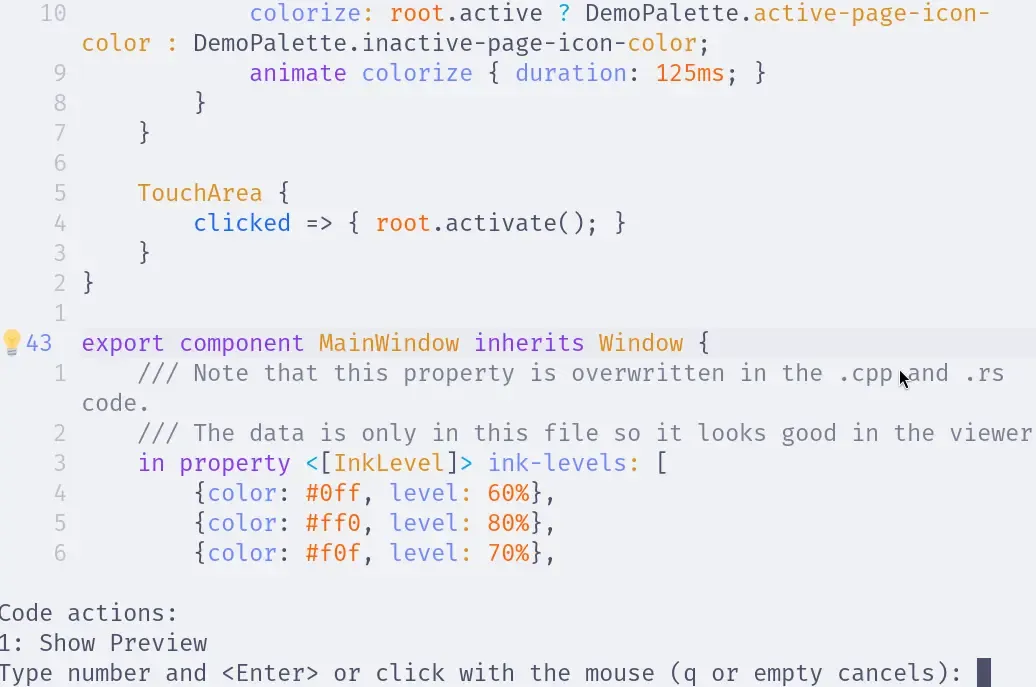
If you have slint-lsp configured in your editor, you can launch the live preview directly from your editor.
Example in Neovim:
Running slint-viewer from the terminal
Section titled “Running slint-viewer from the terminal”To open the live preview from a terminal, you can use the slint-viewer binary.
To install it either:
- Download the binary ↗
- Run
cargo install slint-viewerif you have a Rust installation
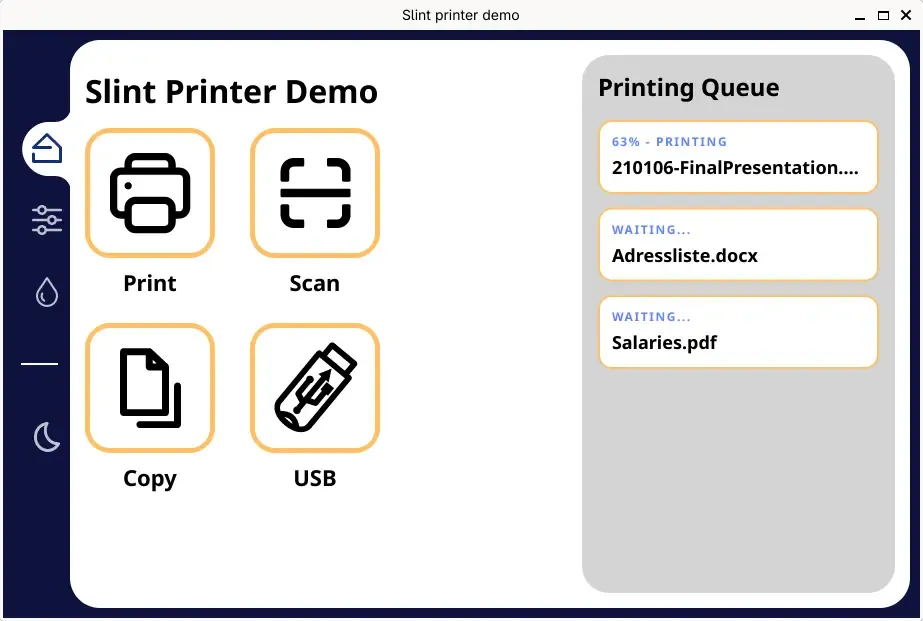
Then run slint-viewer --auto-reload <path/to/file.slint>.
Example on the Printer Demo ↗
Additional resources
Section titled “Additional resources”© 2026 SixtyFPS GmbH